
Overview
Unlimited team members on all plans. Add co-hosts, cleaners, maintenance staff, and anyone who helps manage properties.
Inviting members
Step 1: Send invitation
Open Team → Invite member → Enter email, role, property access → Send Invitation
Team member receives email with account creation link, mobile app instructions, access details. They'll have access within minutes.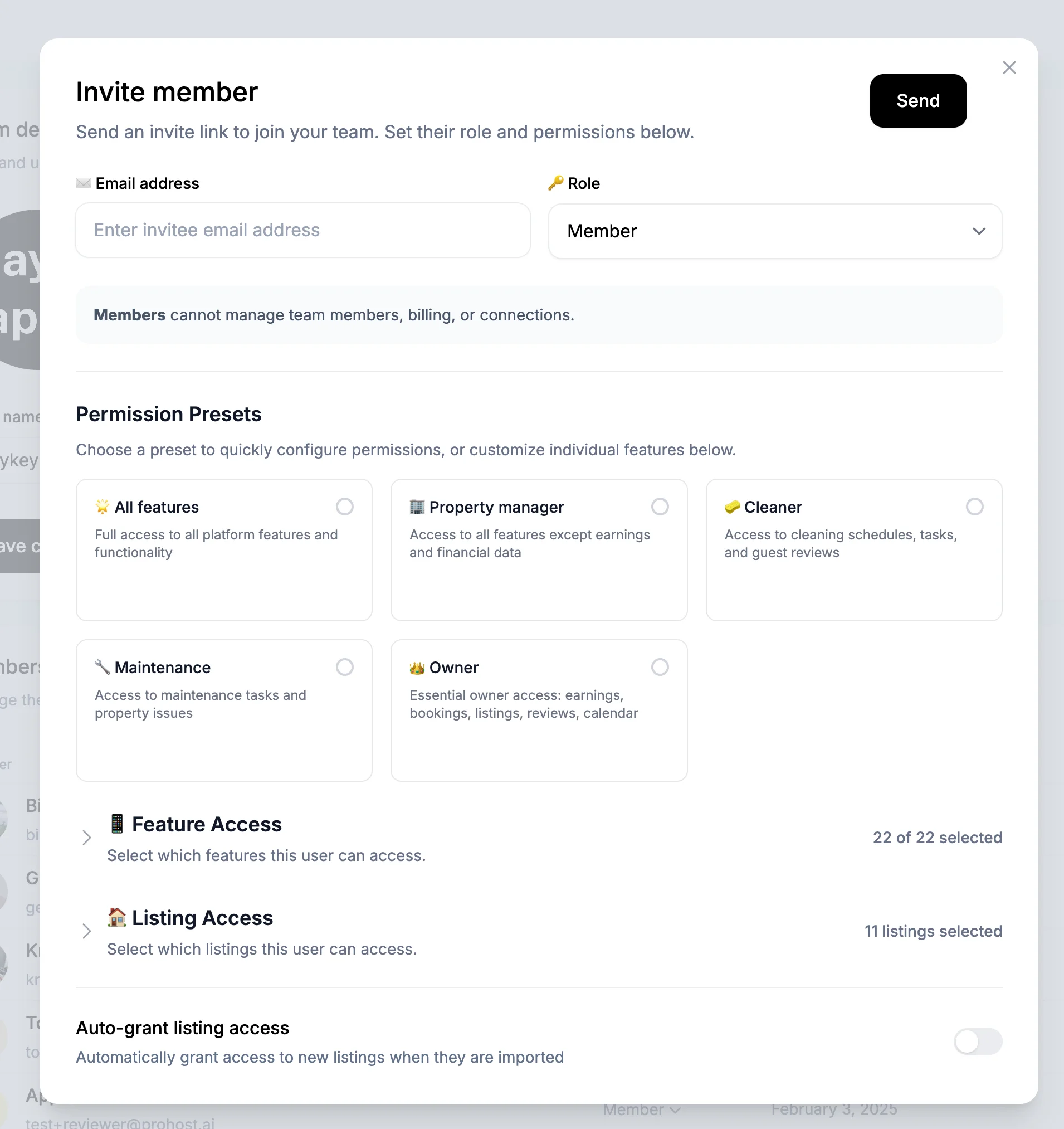
✅ All members communicate via comments on tasks, cleanings, and messages. Use @mentions to notify specific people!
Team roles
Admin (Full access) - Manage settings, invite/remove members, access billing, full read/write. Admins by default have access to all features & settings.
Member (Standard) - View & interact with assigned properties and features.
💡 Tip: Assign specific properties to each member to limit access to relevant listings only. Learn about this below!
Limiting access by Feature and Listing
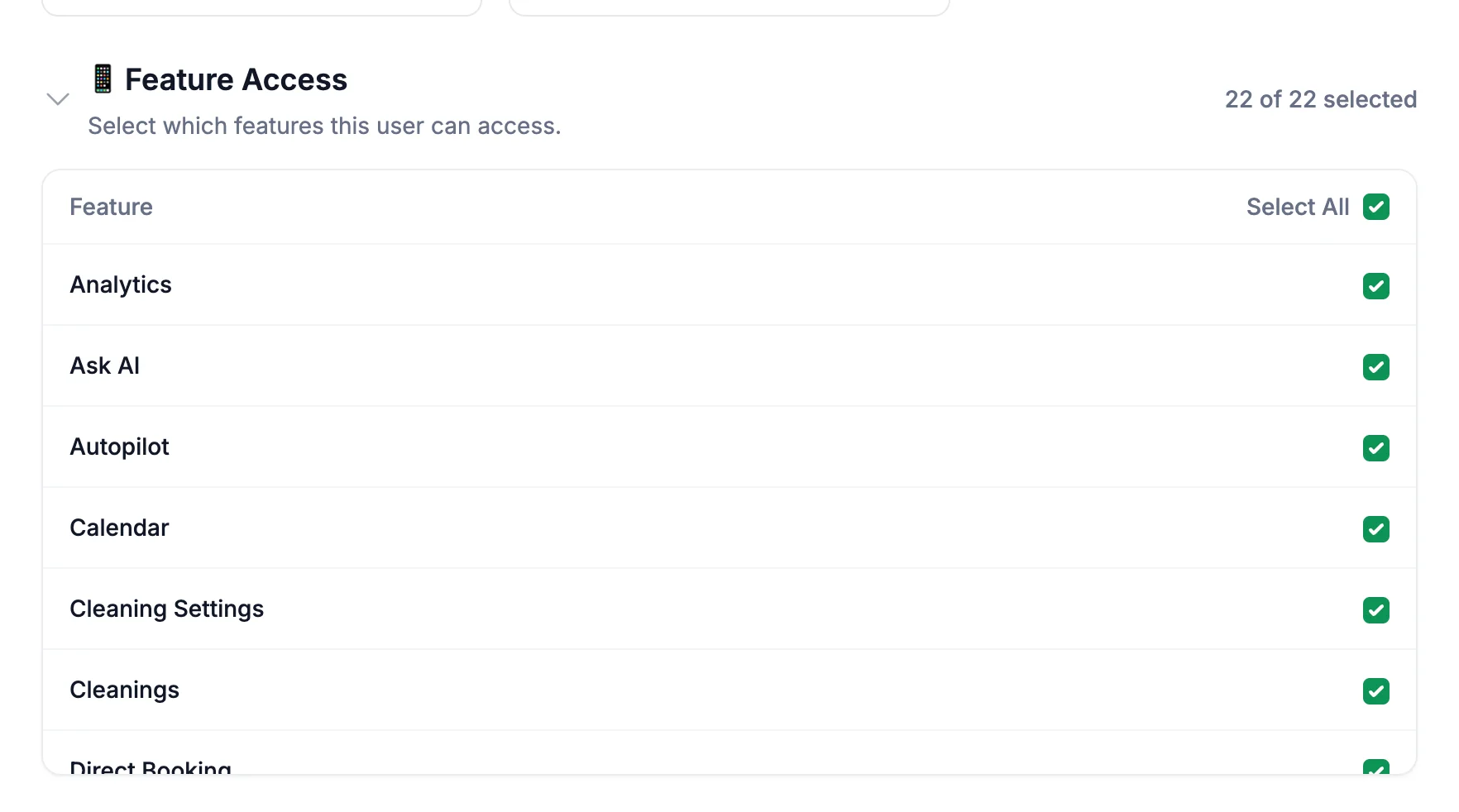
You can choose to give access to a team member by feature or by listing. Use the Permission Presets functionality to quick select which permissions you would like to give to the team member.
Giving access by feature:
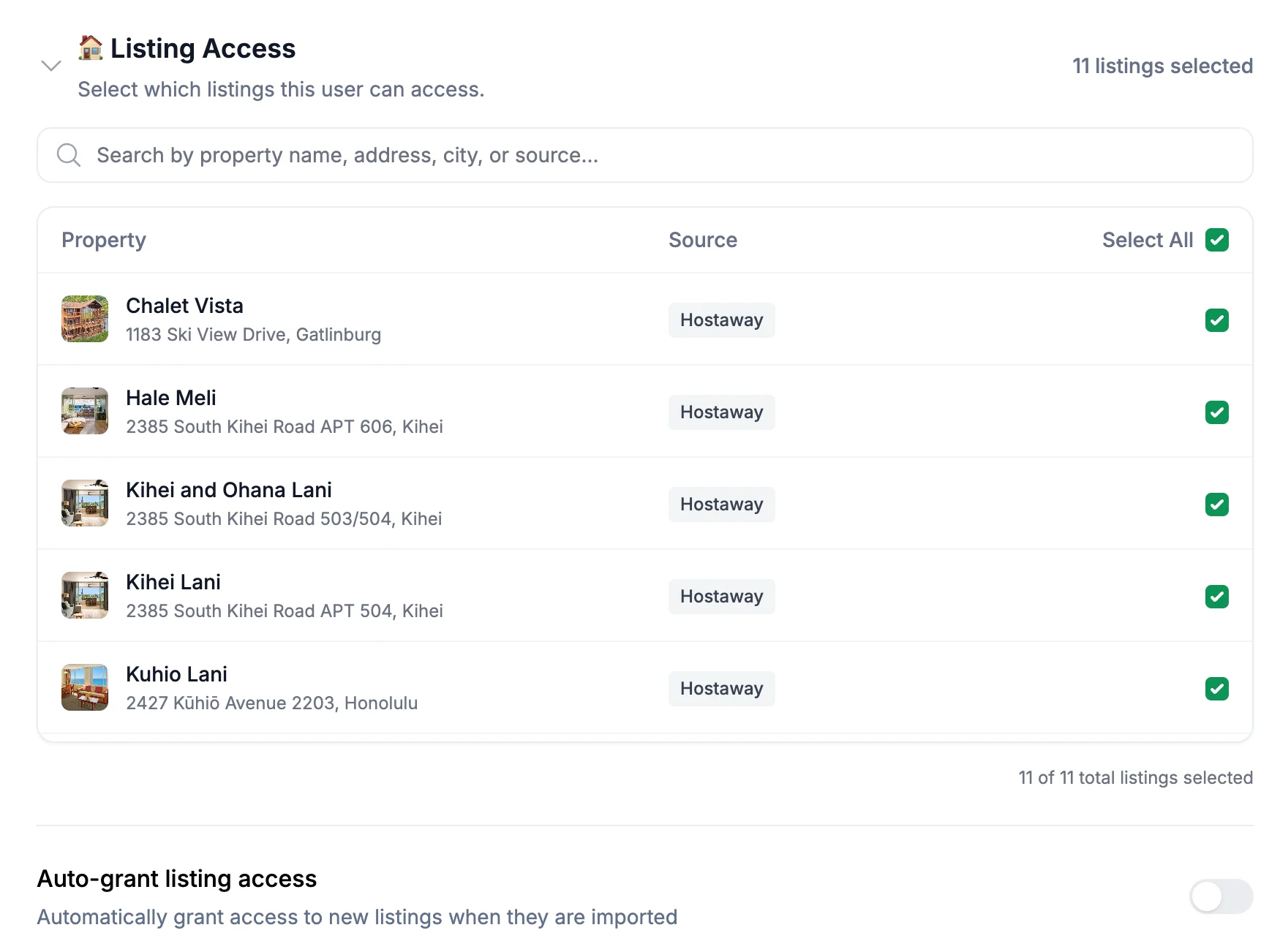
Giving access by listing
Note: On the bottom, you can choose to "Auto-grant listing access" for new listings. This is suitable for a team member who should always have to all your listings as they are added to ProhostAI.
Removing members
Open Team → Click the member → Remove from Team → Confirm.
They immediately lose access to your account and data.