
Overview
To set up AI Autopilot, open Autopilot settings in ProhostAI, choose which message types it can send automatically, and set a confidence threshold so only high-confidence replies auto-send while sensitive ones wait for your approval. Once enabled, Autopilot answers guest messages 24/7 and escalates anything outside its rules to you.
AI Autopilot automatically responds to guest messages 24/7 without manual intervention.
ℹ️ Info: AI Autopilot is available on the Pro plan ($15/listing/month). Free plan users can try it during the 14-day trial.
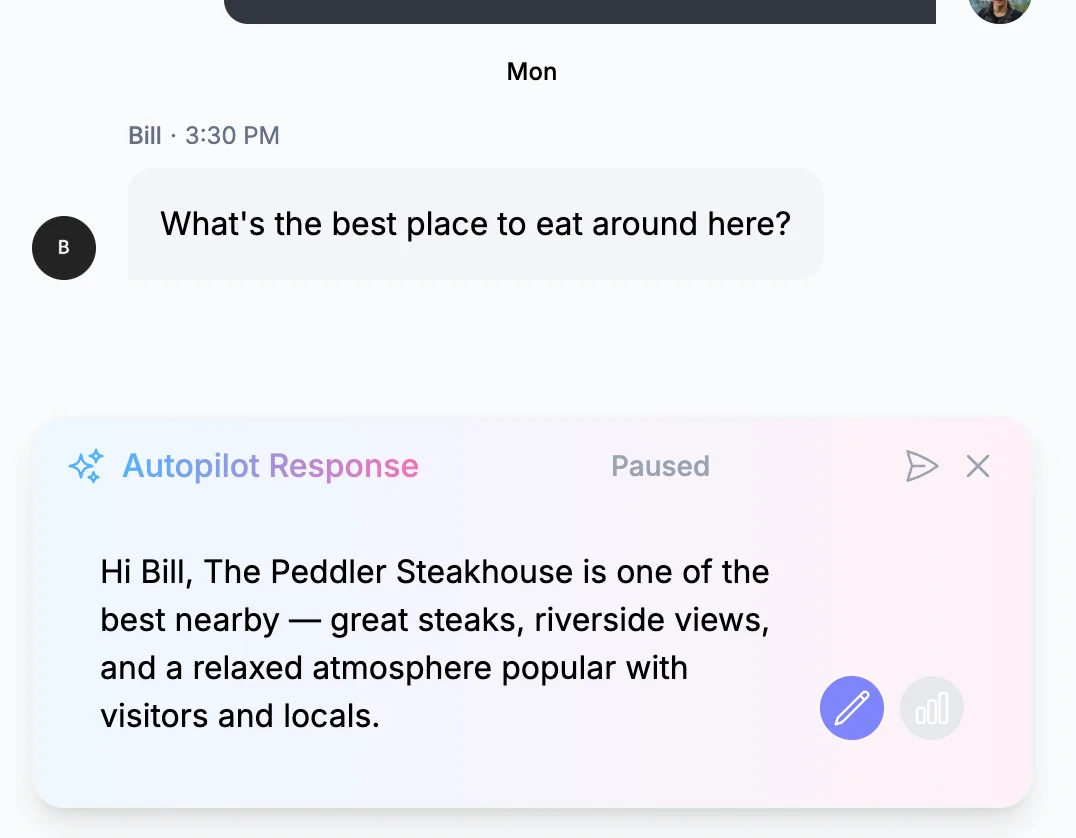
How it works
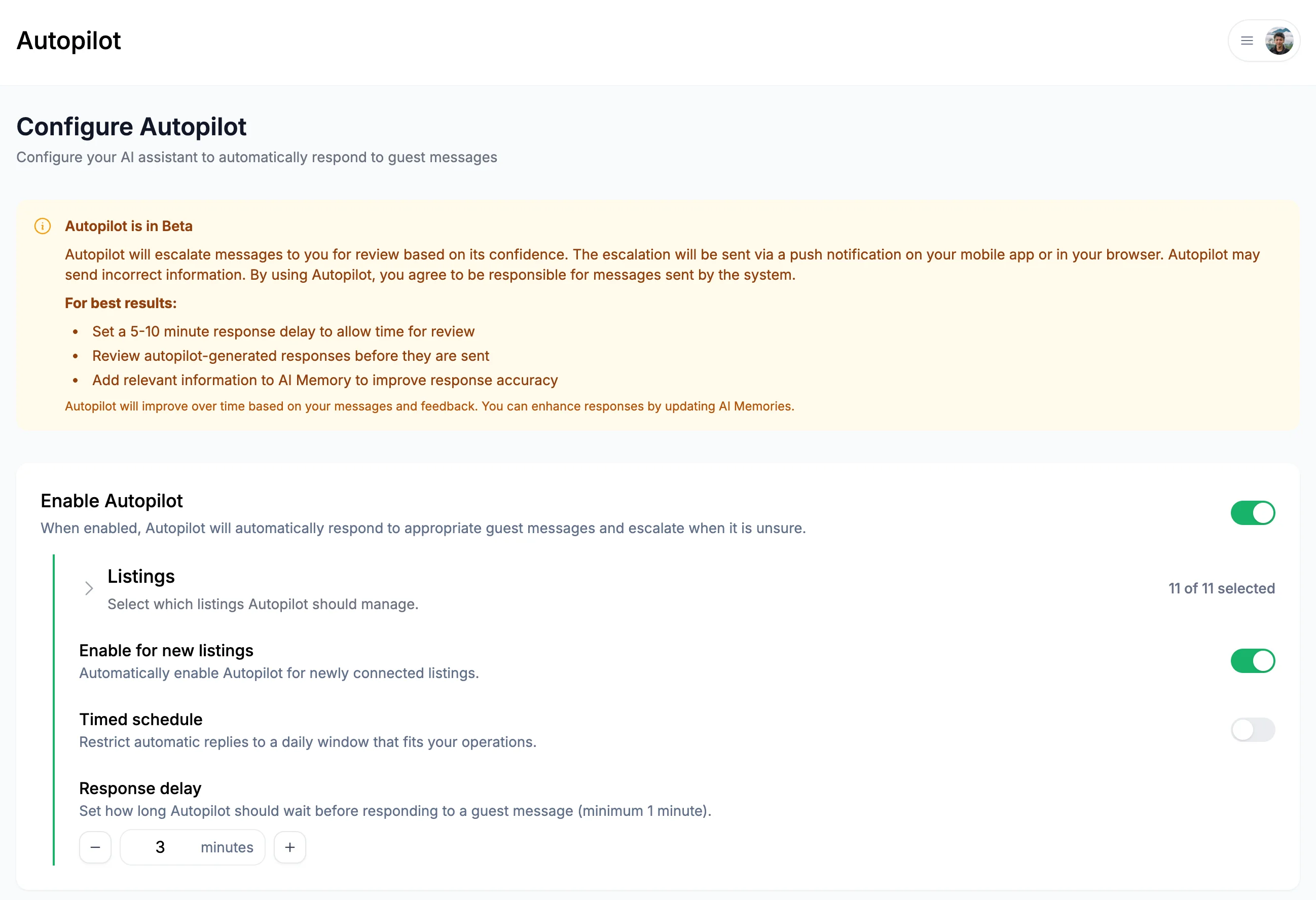
You can turn Autopilot ON/OFF in the Autopilot page.
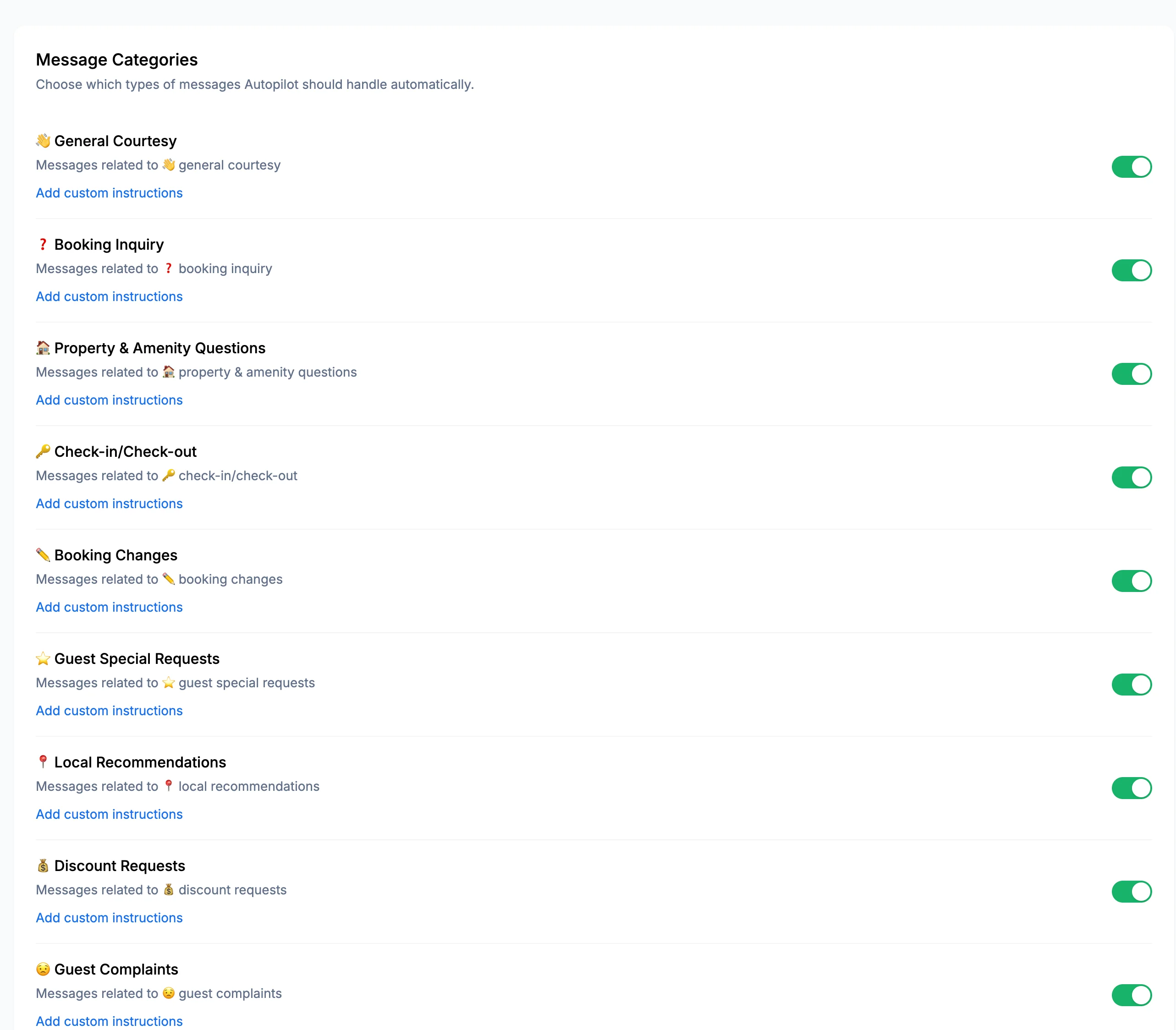
Step 1: Configure message categories
You can turn Autopilot ON/OFF by message category. The message categories include Booking Inquiry, Check-in & Check-out, Booking Changes, Booking Cancellation, Property Amenity Questions, Discount Requests, Payment Issues, Refund Requests, Guest Special Requests, Guest Complaints, Local Recommendations, Maintenance Issues, Entry Issues, General Courtesy, and Guest Sharing Information.
✅ Success: Start with Check-in & Check-out and General Courtesy enabled, then gradually add other categories as you build confidence.
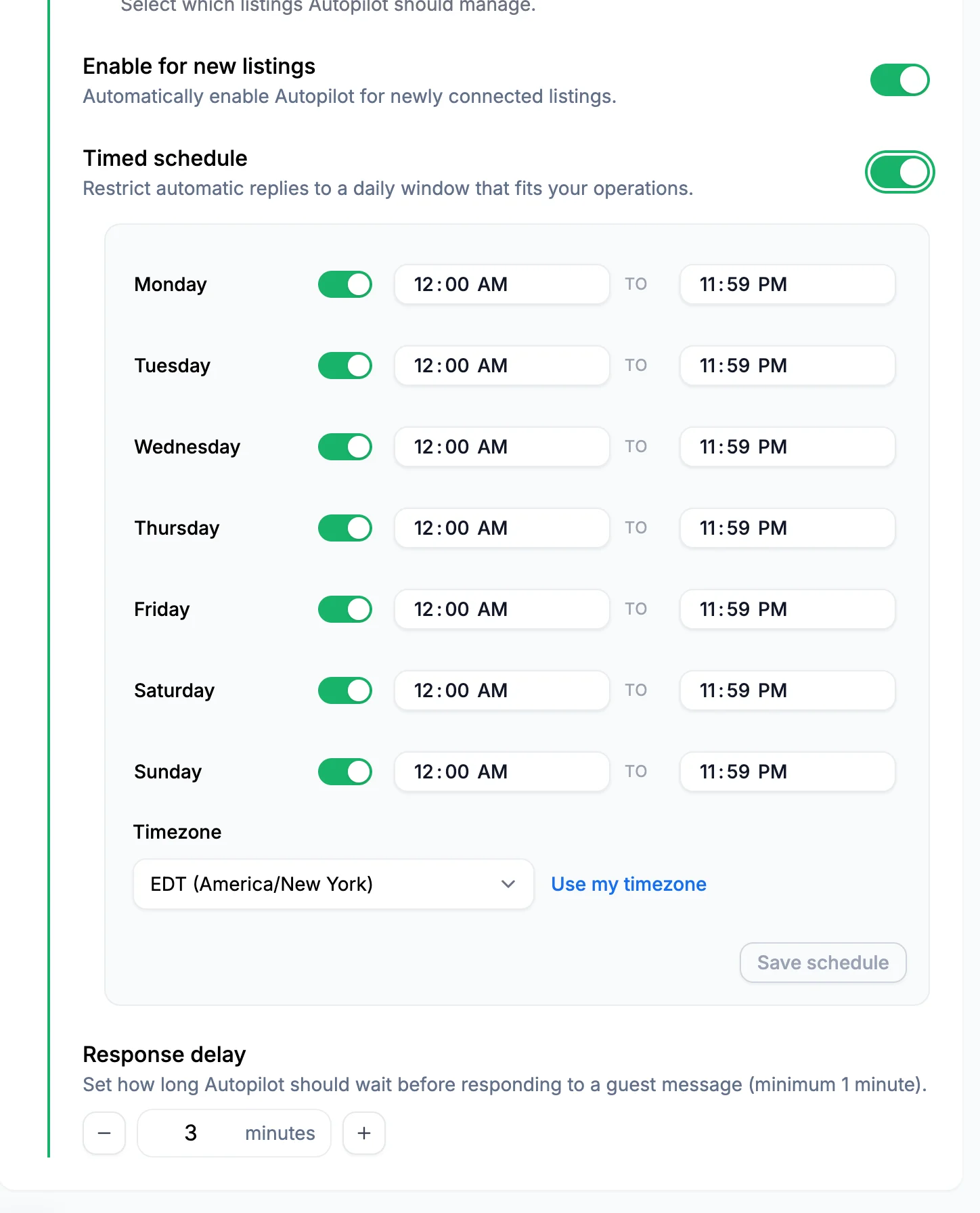
Step 2: Set active hours
You can see a response delay for Autopilot as well as Autopilot schedules by day of week.
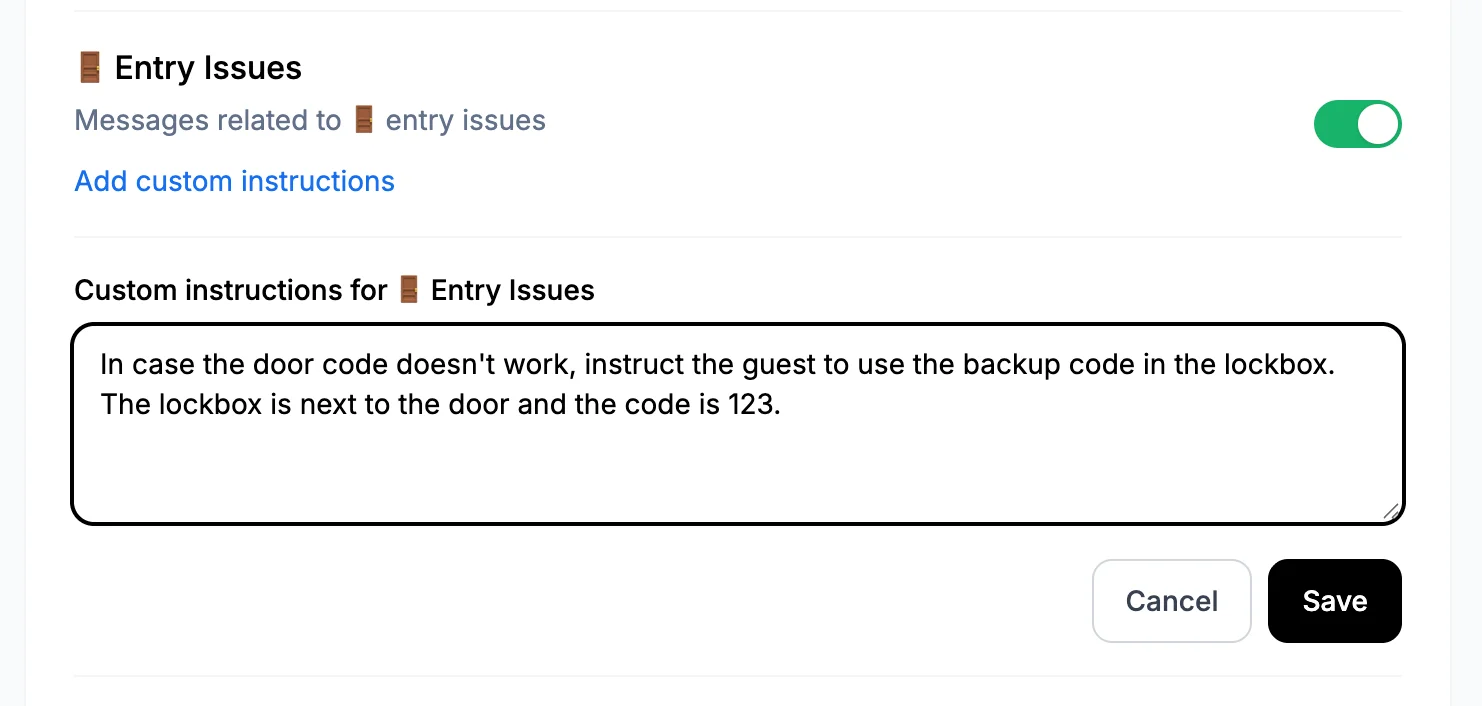
Step 3: Add AI instructions
You can provide custom instruction for Autopilot by message category.
Examples:
✅ Success: The AI learns from your edits. Edit responses before sending to improve future replies.
Best practices
Start conservatively - Begin with simple message categories first and then expand as you build confidence
Keep AI Memory info updated - Check AI memories. Update memories as needed.
Review escalations - Provide feedback on escalated messages to help AI learn
Tune the response delay - Increase the account-wide response delay if you want time to step in and respond manually before Autopilot sends
What's next?
Now that you've set up Autopilot, explore these related guides:
- Configuring Autopilot Escalations - Learn how Autopilot escalates messages to you, including the hourly automatic-send limits
- Customizing AI Writing Tone - Train the AI to match your unique voice
✅ Success: With Autopilot properly configured, you can focus on growing your business while AI handles routine guest communications. Remember to check in periodically and provide feedback to help the AI continuously improve.