
To connect OwnerRez to ProhostAI, log in to OwnerRez in your browser, then in ProhostAI go to Listings → Add listings → Add connection → OwnerRez and authorize the connection. Your listings import automatically and the AI begins learning from your properties and past messages. Setup takes about 5 minutes.
To connect your OwnerRez account, make sure you are logged into your OwnerRez account in your browser.
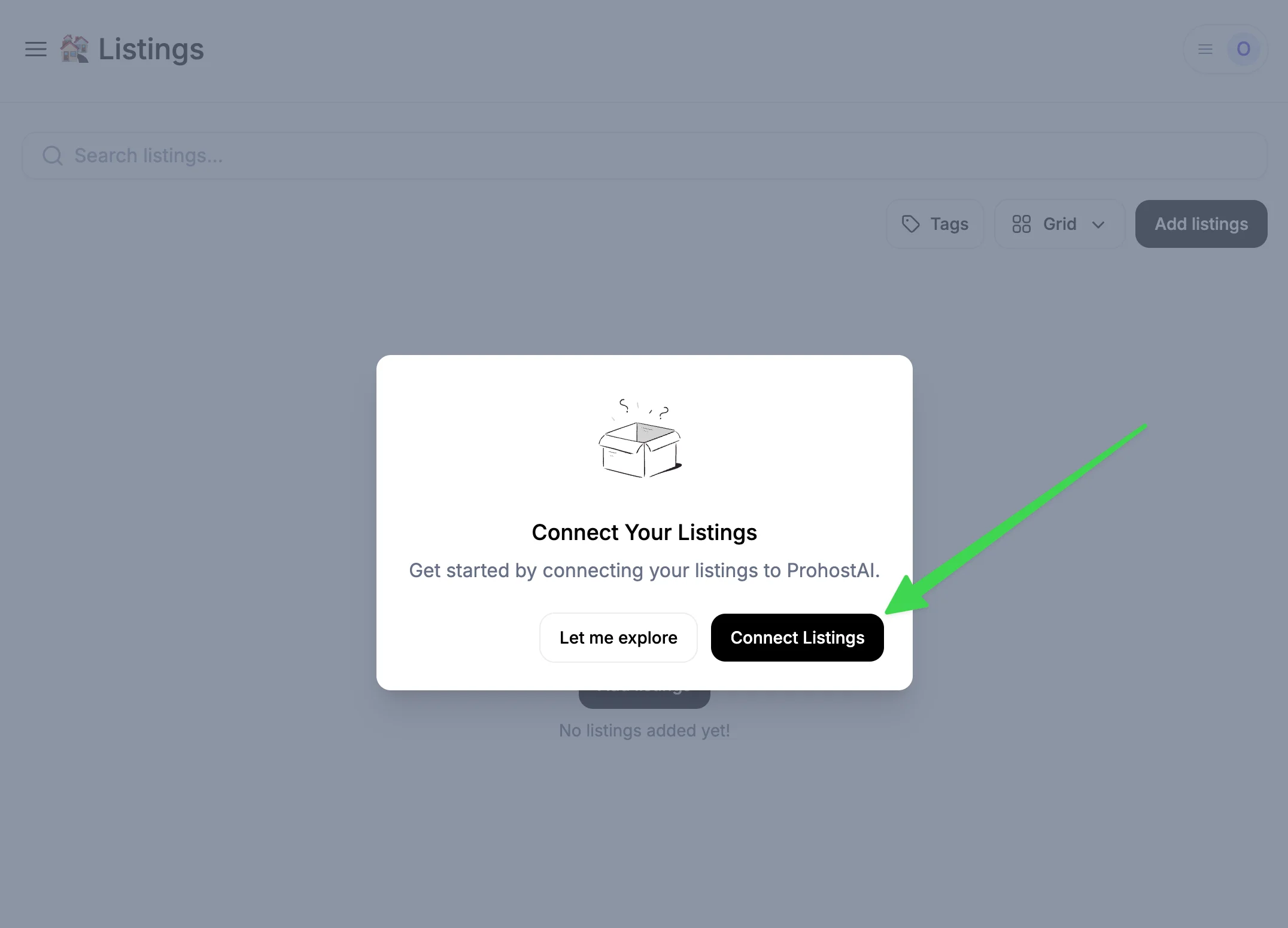
Then in ProhostAI, go to Listings => Add listings => Add connection => OwnerRez. If you haven't connected any listings before, you will see the pop up below. Click on "Connect listings"
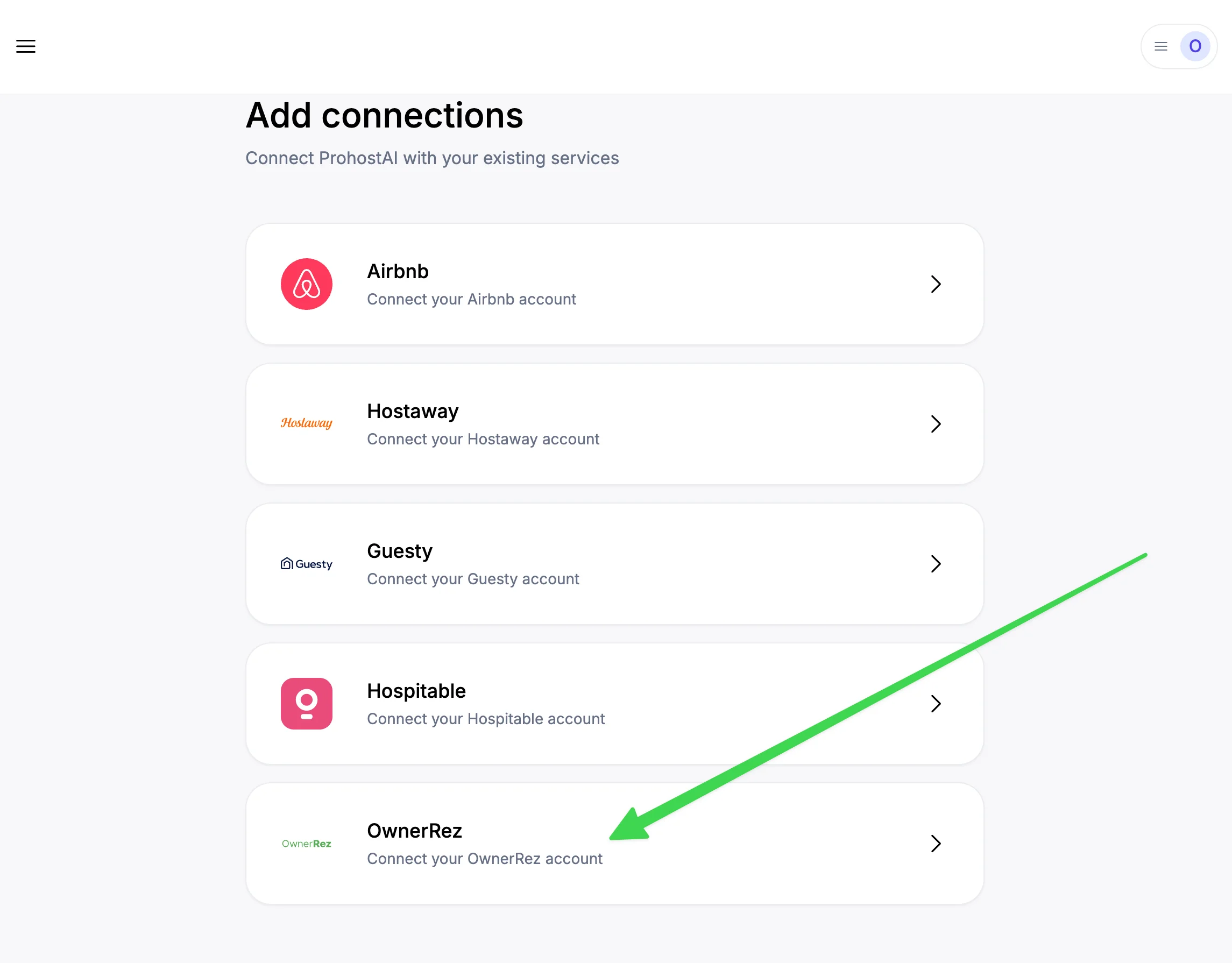
On that page, click "OwnerRez".
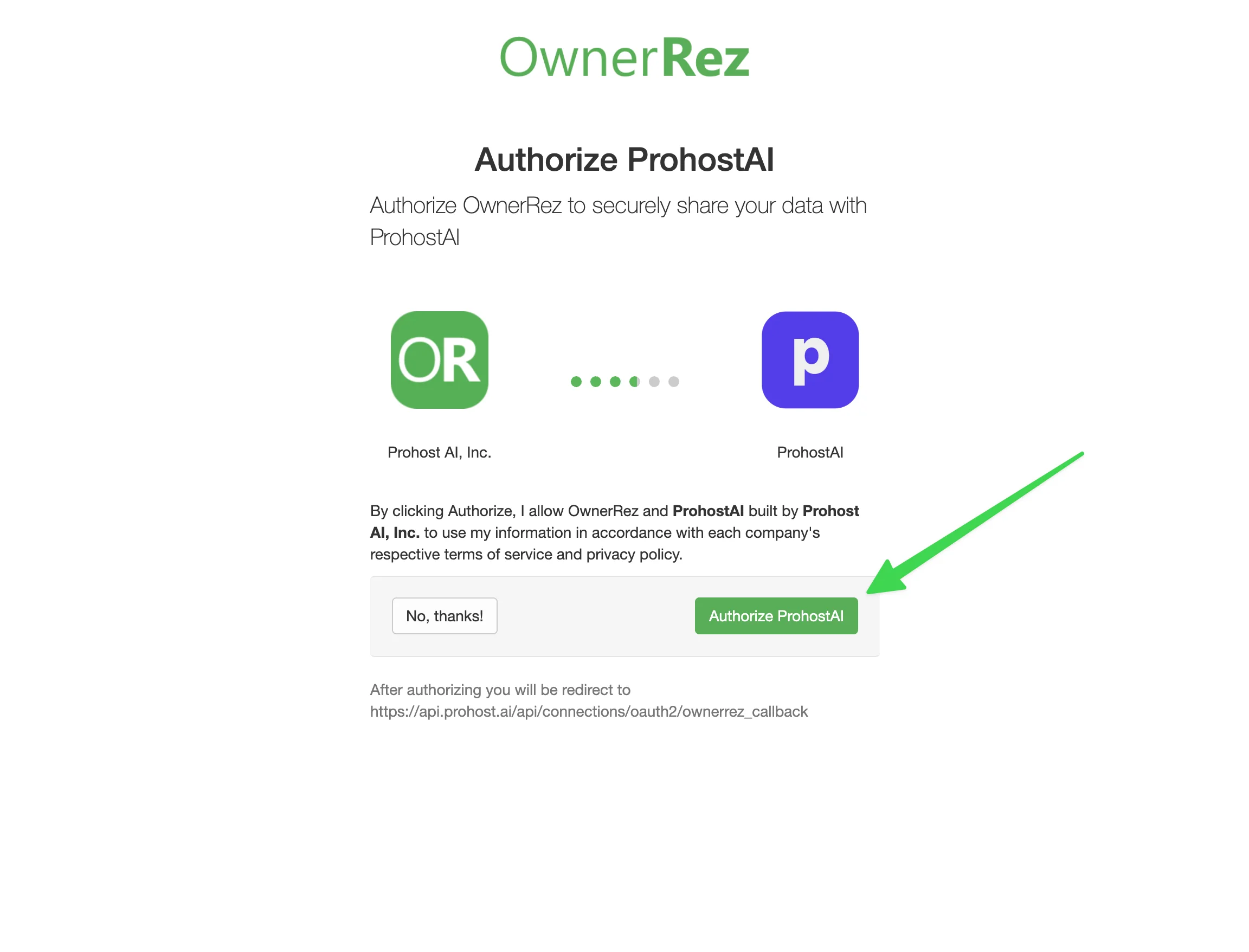
In the screen that pops up, click "Authorize ProhostAI".
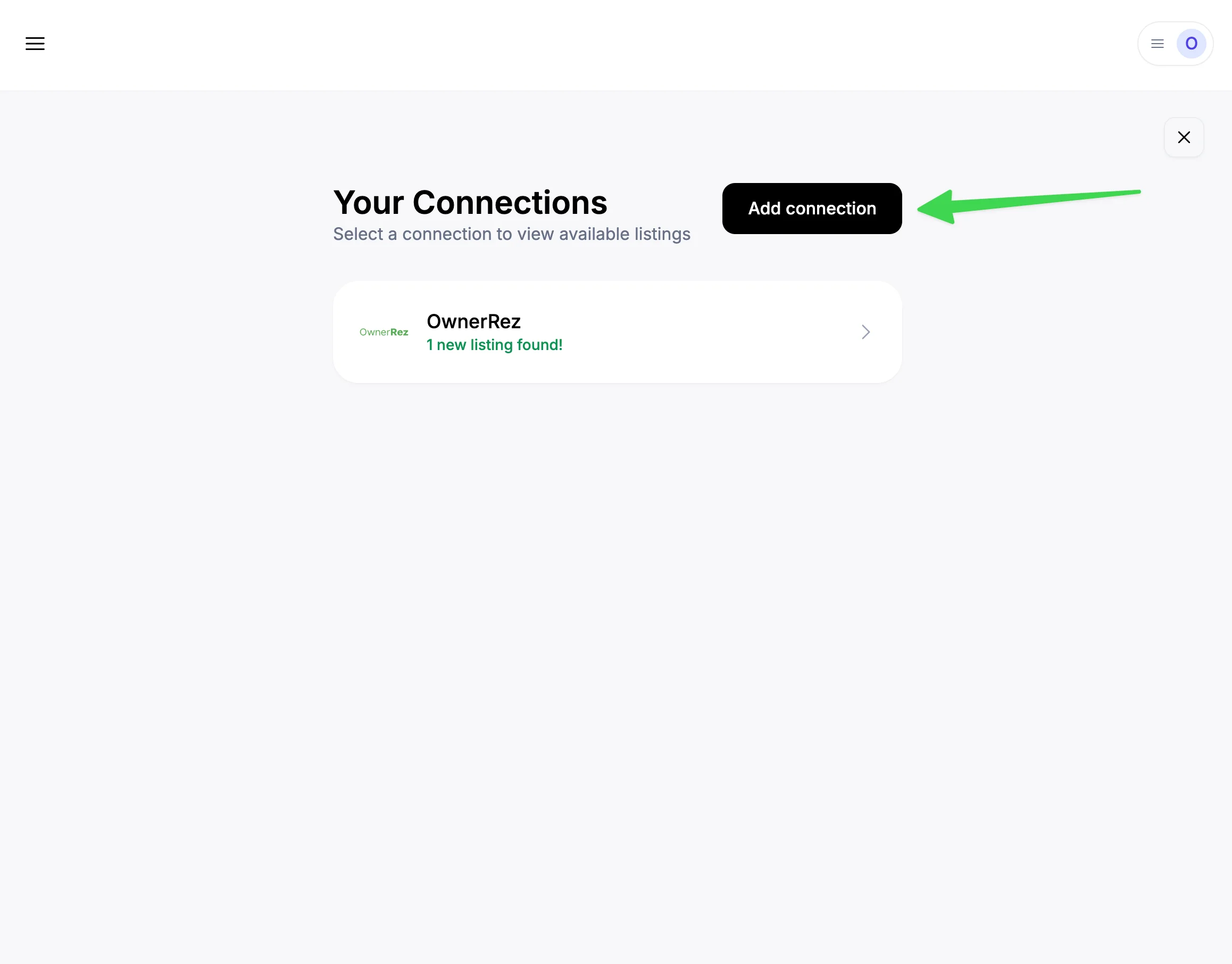
Then click "Add connection"
After that, click on the connection and then click "Add listings"
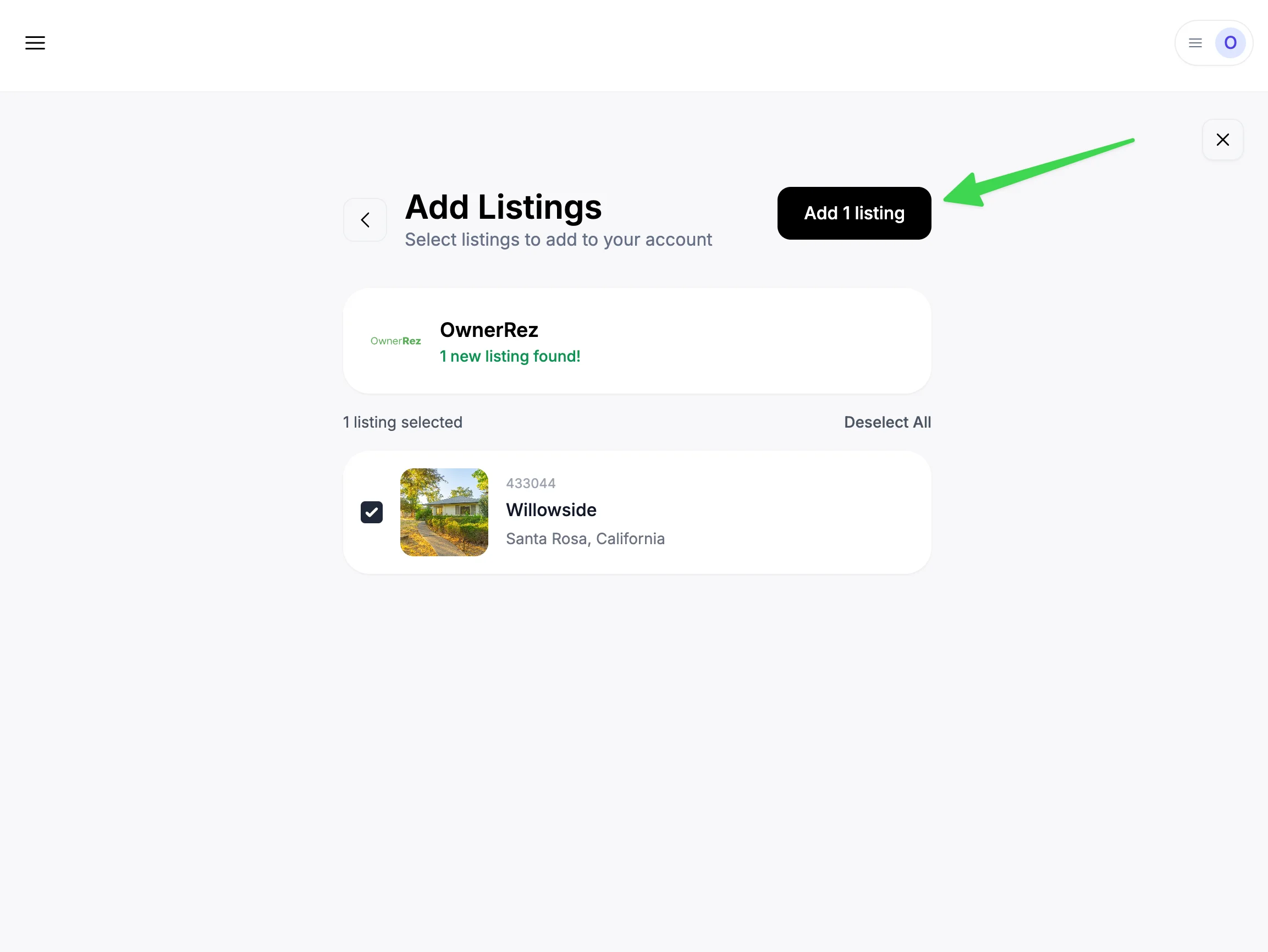
Your listings will be imported. Depending on your listing count, it might take several minutes to finish.
You are all set! You will start seeing AI memories populated in your account as the AI reads your past messages and learns about your listings and hosting rules.
What Data is Transmitted
- Messaging Data - Guest & host messages
- Booking Data - Reservations, check-in/check-out dates, booking status, and pricing information
- Guest Data - Guest names, contact information, and booking details
- Property Data - Listing information, amenities, descriptions, and property settings
Webhooks are used to sync messaging and reservation data instantly.